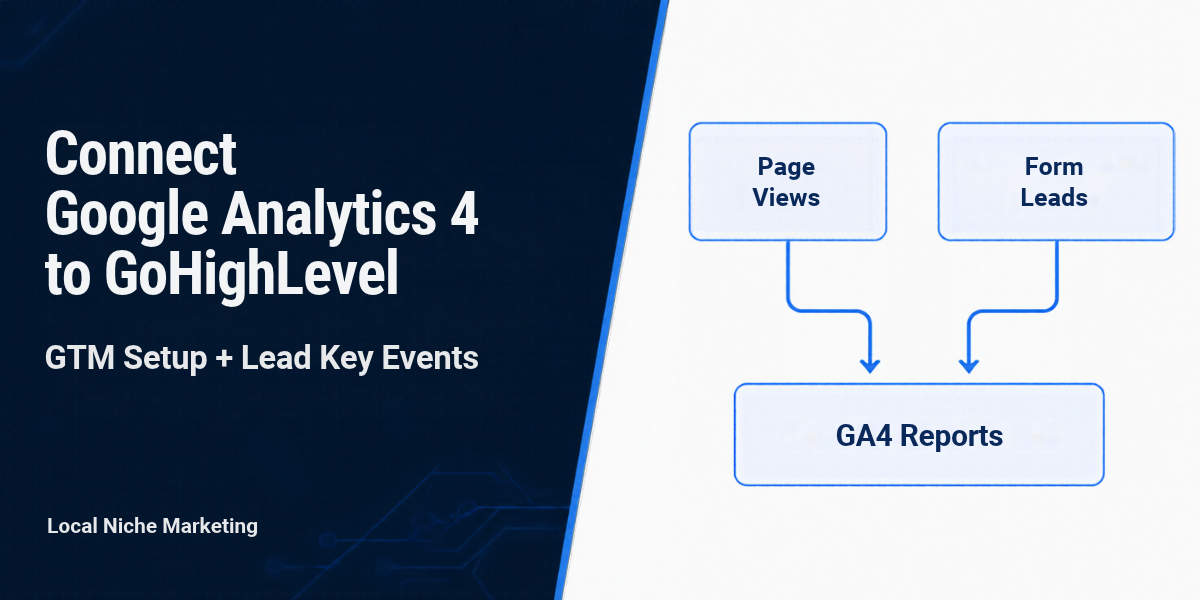
How to Connect Google Analytics 4 to GoHighLevel
Quick answer: To connect Google Analytics 4 to a GoHighLevel funnel or website, create a GA4 property with a web data stream and copy its Measurement ID (it starts with G-). Install Google Tag Manager in the funnel or website's head and body tracking code. In Tag Manager, add a Google tag with your Measurement ID that fires on all pages, then a GA4 Event tag that sends generate_lead when someone reaches your thank-you page. Mark generate_lead as a key event in GA4, and test with Tag Assistant and DebugView.
GoHighLevel has its own reporting, but GA4 shows what it can't: how visitors move through the funnel, which channels bring engaged traffic, and where people drop off before converting.
This guide follows the setup from my video, checked against Google's and GoHighLevel's current documentation. Where the documentation now recommends something different, I've followed the documentation and said so.
How GA4 works on a GoHighLevel site
Three pieces work together:
- A GA4 property and web data stream receive the data. The stream gives you the Measurement ID.
- The Google tag, loaded through Tag Manager on every page, sends page views and the enhanced measurement events GA4 collects automatically, such as scrolls, outbound clicks and form interactions.
- A GA4 Event tag sends the events that matter to your business, such as a lead reaching your thank-you page.
GA4 vs Google Ads conversion tracking
They answer different questions, and most ad accounts need both.
| GA4 | Google Ads conversion tracking | |
|---|---|---|
| What it's for | Understanding traffic and behavior across every channel | Measuring and optimizing Google Ads campaigns |
| What a lead becomes | A key event | A conversion action |
| Who uses the data | You, in reports | Google Ads bidding |
If you run Google Ads, set up its own conversion tracking too. My guide to Google Ads conversion tracking in GoHighLevel covers that, and it uses the same Tag Manager container as this guide.
What the GoHighLevel Google Analytics integration does
GoHighLevel also has a Google Analytics connection under Settings, then Integrations. It pulls GA4 data into GoHighLevel dashboard widgets and custom reports, such as users, sessions by channel and top pages. It reads your GA4 data. It doesn't add tracking to your funnels or websites, so you still need the setup below.
What you need before you start
- A Google account to create the GA4 and Tag Manager accounts. For Tag Manager events, Google's documentation asks for the Editor role or above on the Analytics account.
- Edit access to the GoHighLevel funnel or website, so you can add the tracking code.
- A thank-you page that people only reach after submitting your form. In GoHighLevel, set the form's on-submit action to redirect there. My guide to GoHighLevel forms and surveys covers the form settings.
- Your domain, connected to the funnel or website, so GA4 reports clean page paths.
If you'd rather have tracking set up and tested for you, it's part of my GoHighLevel setup and integration work.
How to connect GA4 to GoHighLevel, step by step
Step 1: Create the GA4 property and web data stream
- Go to analytics.google.com, open Admin and create an account. Name it after the business.
- Create a property. Set the time zone and currency to match the business, so daily reports line up with your day.
- Fill in the business details and pick the objectives that fit. For a lead generation site, that's generating leads.
- Choose Web as the platform, enter your website URL and a stream name, and leave enhanced measurement on. Google recommends turning it on at this stage; you can switch off individual events later.
- Click Create & continue.
- To find your Measurement ID later, go to Admin, then Data collection and modification, then Data streams, and open the stream. It's under Stream details and starts with G-.
Step 2: Install Google Tag Manager on your funnel or website
- In Tag Manager, create an account and a container with Web as the target platform.
- Tag Manager shows two snippets, one for the head and one for the body.
- In GoHighLevel, go to Sites, open your funnel or website, and open its Settings.
- Paste the head snippet into Head tracking code and the body snippet into Body tracking code, then save.
If you already installed Tag Manager for Google Ads or another platform, skip this step and use the same container.
GoHighLevel adds these codes in the browser, so they won't appear inside the <head> when you view the page source. That's normal. The testing section below confirms they load.
Step 3: Add the Google tag in Tag Manager
- In Tag Manager, go to Tags, click New, and choose Google Tag.
- In Tag ID, paste your Measurement ID (the one starting with G-).
- Set the trigger to Initialization - All Pages and save.
This tag sends page views and enhanced measurement events from every page. If your container already has a Google tag for Google Ads (an AW- ID), GA4 still needs this separate tag with its own G- ID.
My video also adds a debug_mode parameter to this tag for testing. You don't need it. Tag Manager's Preview mode turns on debug mode for your own browser, which I cover in the testing section.
How to track form leads as a key event in GA4
Enhanced measurement already sends a form_submit event, but it fires for any form on the site. Google's own guidance is to create a separate event for the specific lead form. On a GoHighLevel funnel, the most reliable signal is the visitor reaching the thank-you page.
Step 4: Send generate_lead from the thank-you page
- In Tag Manager, go to Tags, click New, and choose Google Analytics: GA4 Event.
- In Measurement ID, paste your G- ID.
- In Event Name, enter
generate_lead. - If you give each lead a value, add the event parameters
valueandcurrency. Currency is required whenever you send a value. - Create a trigger: Page View, firing on Some Page Views where Page Path contains your thank-you path, for example
/thank-you. - Save the tag.
In my video I named this event lead_submit. Google recommends using its recommended events, such as generate_lead, instead of custom names wherever one fits, because GA4 builds features and reports around them. If you followed the video, rename the event.
Step 5: Mark generate_lead as a key event
- In GA4, go to Admin, then Data display, then Key events.
- Click New key event, enter
generate_lead, and save.
You can do this before the event has ever fired. GA4 renamed conversions to key events, and "conversions" now means conversions used in Google Ads.
You can import this key event into Google Ads as a conversion. If you already track leads with the Google Ads tag, keep only one of the two as a primary conversion, or every lead is counted twice.
How to test GA4 on your GoHighLevel site
Step 6: Preview in Tag Manager and watch DebugView
- In Tag Manager, click Preview, enter your funnel or website URL, and connect. Tag Assistant opens your site.
- On the landing page, check that the Google tag fired. The GA4 Event tag should not fire here. If it does, the thank-you trigger is too broad.
- Submit the form with a test entry. On the thank-you page, the GA4 Event tag should show as fired.
- In GA4, go to Admin, then Data display, then DebugView. With Preview connected, your browser's events show up here, including
generate_leadand its parameters.
Google's documentation confirms that Tag Assistant's preview mode turns on debug mode for your own device, so this needs no extra settings.
Step 7: Publish the container
Click Submit in Tag Manager, give the version a clear name such as "GA4 setup", and publish. Nothing you've built is live until you publish.
After publishing: Realtime first, reports later
- Realtime report: visit the site yourself, and you should appear within minutes.
- Standard reports: GA4 allows 24 to 48 hours to process data, so empty reports on day one don't mean the setup failed.
If you added a debug_mode parameter while following my video, remove it now. Google notes that setting it to false doesn't turn debug mode off. Only removing the parameter does.
Common GA4 mistakes on GoHighLevel sites
- GA4 installed twice. The gtag.js snippet sits in the funnel's head tracking code, and Tag Manager loads a Google tag as well. Every page view counts twice. GoHighLevel's own article gives both methods as alternatives, so pick one.
- The wrong Measurement ID. A G- ID from another property or stream sends the data somewhere you're not looking.
- debug_mode left on. With the parameter on the Google tag, every visitor's activity goes to DebugView, not just yours.
- Custom event names where a recommended one exists.
lead_submitworks, butgenerate_leadis the name GA4 builds lead reporting around. - Page views marked as a key event. Google's documentation warns against it: every page view would count as a key event.
- A thank-you page people can reach without submitting. If it's in your menu or linked from elsewhere, those visits count as leads.
- The container was never published. Everything fires in Preview and nothing reaches GA4 from real visitors.
- Expecting the GoHighLevel integration to track. It only reads GA4 data into dashboards and reports.
What to do after GA4 is working
- Track other conversion pages the same way. If a booking confirmation or order page only appears after a conversion, add another GA4 Event tag for it.
- Track ad conversions separately. GA4 tells you what happened on the site. Google Ads and Meta still need their own conversion signals to optimize. My guides cover Google Ads conversion tracking in GoHighLevel and the Facebook Conversions API in GoHighLevel.
- Bring the numbers into GoHighLevel. Connect GA4 under Settings, then Integrations, and add the Google Analytics widgets to a dashboard or custom report, so traffic and leads sit in one place.
Frequently asked questions
Can I add GA4 to GoHighLevel without Google Tag Manager?
Yes. Copy the Google tag (gtag.js) snippet from your data stream's installation instructions and paste it into the funnel or website's head tracking code. GoHighLevel's help article offers both options. Tag Manager is easier once you add events, because you can change them without editing the funnel again.
Where do I find my GA4 Measurement ID?
In GA4, go to Admin, then Data collection and modification, then Data streams, and open your web stream. The Measurement ID is under Stream details and starts with G-.
Does the GoHighLevel Google Analytics integration track my funnels?
No. The integration under Settings, then Integrations, reads data from GA4 into GoHighLevel dashboards and custom reports. Tracking still has to be installed through the tracking code.
Do I need to add the code to every funnel and website?
Yes, to each one you want to track. The tracking code lives in each funnel's or website's own settings. You can use the same Tag Manager container and Measurement ID in all of them.
Why is GA4 not showing any data?
Check the Realtime report first, which updates within minutes. Standard reports can take 24 to 48 hours. If Realtime is empty too, the usual causes are an unpublished container, the wrong Measurement ID, or an ad blocker in your own browser.
Should I use generate_lead or my own event name?
Use generate_lead. Google recommends its recommended events over custom names wherever one fits, and generate_lead is the one for form submissions.
What's the difference between a key event and a conversion?
A key event is an action you mark as important in GA4. A conversion is what Google Ads counts and bids on. You can turn a GA4 key event into a Google Ads conversion, but you don't have to.
Do I need debug_mode to use DebugView?
No. Tag Manager's Preview mode turns on debug mode for your own browser. Adding debug_mode to the Google tag sends every visitor's data to DebugView, so leave it off.
Want this set up for you?
If you'd rather not spend an afternoon in Tag Manager, I can set up GA4, your ad conversions and the GoHighLevel reporting together, and test every piece. That's part of my GoHighLevel services, and for clinics running paid ads it sits alongside my chiropractic ads management. Book a call and we'll look at your setup together.
Sources
- Google Analytics Help: Set up Analytics for a website and/or app
- Google Analytics Help: Enhanced measurement events
- Google Analytics Help: Recommended events
- Google Analytics Help: Events and key events
- Google Analytics Help: Monitor events in DebugView
- Google Analytics Help: Data freshness
- Google Tag Manager Help: Set up Google Analytics in Tag Manager
- Google Tag Manager Help: About the Google Analytics 4 Event tag
- HighLevel Help: Add tracking code to funnels and websites
- HighLevel Help: Google Analytics widgets in dashboard and custom reports


