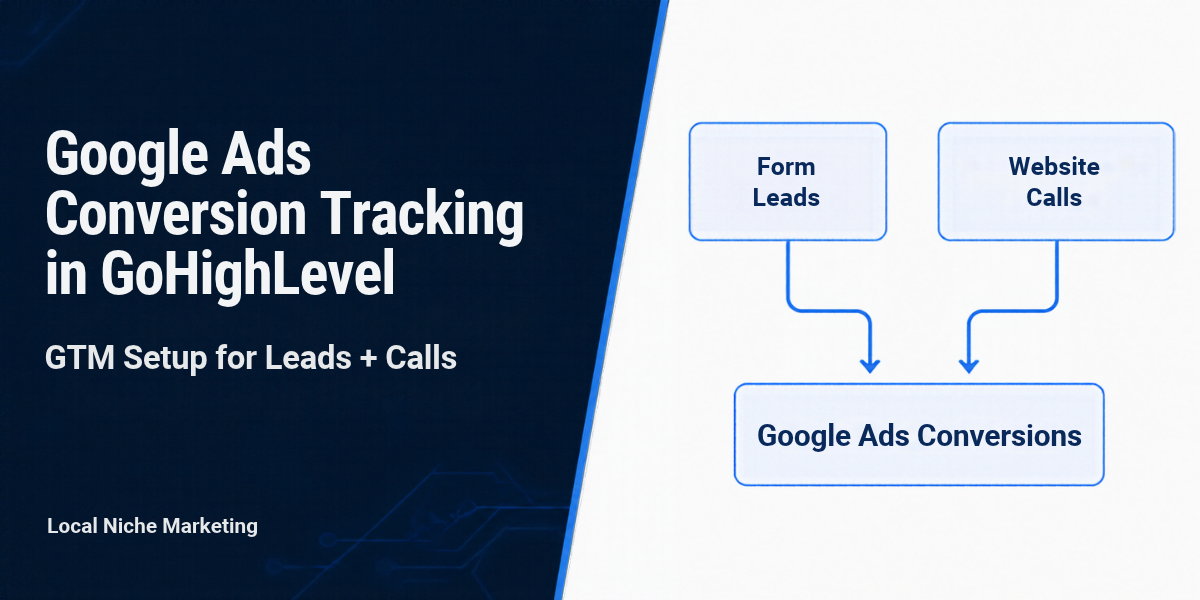
Google Ads Conversion Tracking in GoHighLevel With GTM
Quick answer: To track Google Ads conversions on a GoHighLevel funnel or website, add your Google Tag Manager code to the funnel or website settings and create a conversion action in Google Ads. Then, in Tag Manager, add a Google tag that fires on all pages and a Google Ads Conversion Tracking tag that fires when someone lands on your thank-you page. Test it in Tag Assistant before you publish.
This is the setup I use on client funnels. It tracks form leads through a thank-you page, which works reliably on GoHighLevel. It also covers calls from your website and from your ads, and the settings in Google Ads that decide whether the data is any use for bidding.
Every step below is checked against Google's and GoHighLevel's current help documentation, which is linked at the end.
How Google Ads conversion tracking works on a GoHighLevel site
Three pieces work together:
- Auto-tagging in Google Ads adds a click ID to the landing page URL when someone clicks your ad. Google says auto-tagging needs to be on for conversions to be measured accurately.
- The Google tag, firing on every page, stores that click information in a first-party cookie on your domain.
- The conversion tag fires when the conversion happens, such as a visit to your thank-you page, and Google matches it back to the click.
Tag Manager is the container that holds these tags. You install it once in GoHighLevel, and every tag after that is managed in Tag Manager without touching your funnel again.
Which tracking method to use
| What you want to track | Method | Set up in |
|---|---|---|
| Form leads | Thank-you page view (this guide) | Google Ads and Tag Manager |
| Calls from a number on your website | Calls from website, using a Google forwarding number | Google Ads and Tag Manager |
| Calls from your ads | Calls from ads, using call assets | Google Ads only |
| Leads that book, show or buy | Offline conversions from your CRM | Google Ads and GoHighLevel workflows |
This guide covers the first three. The fourth is the next step once these are working, and it is covered briefly at the end.
Why the thank-you page method
On a GoHighLevel funnel, the simplest reliable signal that a form was submitted is the visitor landing on the page that only submitters see. GoHighLevel forms can redirect to a URL when submitted, so every lead passes through that page, and Tag Manager only has to watch for the URL.
What you need before you start
- Admin access to Google Ads, with auto-tagging turned on.
- A Google Tag Manager account and container for the domain your funnel or website runs on.
- Edit access to the GoHighLevel funnel or website, so you can add the tracking code and set the form redirect.
- A thank-you page that only people who submitted the form can reach. In GoHighLevel this is usually the next funnel step or a separate page.
- For call tracking: a business in a country where Google forwarding numbers are available, and at least one call asset if you want to track calls from ads.
If you'd rather have this built and tested for you, it's part of the GoHighLevel tracking and automation setup I do for clients.
How to set up Google Ads conversion tracking in GoHighLevel, step by step
Step 1: Install Google Tag Manager on your funnel or website
- In Tag Manager, create a web container for your domain. Tag Manager gives you two snippets: one for the head and one for the body.
- In GoHighLevel, go to Sites, open your funnel or website, and open its Settings.
- Paste the head snippet into Head tracking code and the body snippet into Body tracking code, then save.
Adding it in the funnel or website settings loads Tag Manager on every page. GoHighLevel also lets you add tracking code to a single page from the page builder, but for conversion tracking you want it everywhere.
One thing that confuses people: GoHighLevel's documentation explains that head and body tracking codes are injected by the browser, so they won't show inside the <head> when you view the page source. That's expected. Use Tag Assistant, covered in the testing section below, to confirm it's loading instead.
Step 2: Send form submissions to a thank-you page
Open the form in GoHighLevel and set its on-submit action to redirect to your thank-you page URL. On a funnel page, the form element's own on-submit setting overrides the form's default, so check both.
Use a clear path such as /thank-you that appears nowhere else on the site. If you're still building the form, my guide to GoHighLevel forms and surveys covers the settings and fields.
Step 3: Create the conversion action in Google Ads
- In Google Ads, go to Goals, then Conversions, then Summary, and create a new conversion action for your website.
- Set it up manually and choose the Submit lead form category.
- Name it something you'll recognize later, such as "GHL form lead (thank-you page)".
- Set Count to One. Google's own guidance is to use One for leads, so a refresh or a second submission from the same click isn't counted twice.
- Keep it as a primary action if this is a new account. You need these conversions for bidding before you have anything better to optimize for.
- In the tag setup step, choose Use Google Tag Manager and copy the Conversion ID and Conversion Label. The Conversion ID is the same for every action in the account. The label is unique to this action.
Step 4: Add the Google tag in Tag Manager
- In Tag Manager, go to Tags, click New, and choose Google tag.
- Enter your Google Ads tag ID, the one that starts with AW-.
- Set the trigger to Initialization - All Pages, and save.
This is the tag that stores the ad click information on every page. Older setups, including the one in my video, also add a separate Conversion Linker tag. Google's Tag Manager documentation says a container that loads a Google tag on every page doesn't need one, so for a new setup the Google tag covers it.
Step 5: Add the conversion tag for the thank-you page
- Create another tag and choose Google Ads, then Google Ads Conversion Tracking.
- Paste the Conversion ID and Conversion Label from step 3. Leave value and transaction ID empty for a lead form.
- Create a trigger: Page View, firing on Some Page Views where Page URL contains your thank-you path, for example
/thank-you. - Save the tag.
Use "contains" rather than "equals" so the trigger still fires when the URL carries tracking parameters.
How to track phone calls from your GoHighLevel site and your ads
For many local businesses, calls are half the leads. Google Ads offers three kinds of call tracking, and they are not equal:
| Call conversion type | What it actually counts | How it works |
|---|---|---|
| Calls from website | Real calls to your number from people who clicked an ad | A Google forwarding number replaces your number on the page |
| Clicks on your number (mobile) | Taps on a phone link | Counts the tap only, not whether a call happened |
| Calls from ads | Calls from your call assets or call-only ads | A Google forwarding number shows in the ad |
I use calls from website rather than clicks on the number. A tap on a phone link doesn't mean the person called, and Google's own documentation notes that this option tracks the clicks, not the calls.
Step 6: Track calls from your website
- In Google Ads, create a new conversion action for phone calls and choose calls to a phone number on your website.
- Enter your phone number exactly as it appears on your GoHighLevel page.
- Choose Use Google Tag Manager and copy the Conversion ID and Conversion Label.
- In Tag Manager, create a tag of type Google Ads Calls from Website Conversion, paste the ID and label, and enter the same phone number.
- Set it to fire on All Pages, so the number is swapped on any page a visitor reaches from an ad.
Google's documentation lists a few limits worth knowing before you rely on this:
- Google forwarding numbers are only available in certain countries.
- The default tag tracks one number per page.
- The standard Tag Manager tag doesn't handle international number formats, and can show the forwarding number with an unexpected plus sign. Google's fix is to enter the number in national format, without the plus sign.
Step 7: Track calls from your ads
This one needs no tag. In Google Ads, create a phone call conversion for calls from ads and make sure your campaigns use call assets with call reporting on. Google notes these calls can only be tracked from mobile devices.
How to test your Google Ads conversion tracking before you rely on it
Step 8: Preview the container in Tag Assistant
- In Tag Manager, click Preview and enter your funnel or website URL. Tag Assistant opens your page connected to the container.
- On the landing page, check which tags fired. You should see the Google tag and the Calls from Website tag. The thank-you conversion tag should not fire here. If it does, the trigger is too broad.
- Submit the form with a test entry. When the thank-you page loads, the Google Ads Conversion Tracking tag should show as fired.
- When everything fires where it should, click Submit in Tag Manager to publish the container. Nothing you built is live until you publish.
Step 9: Check the conversion status in Google Ads
Go to Goals, then Conversions, then Summary, and look at the tracking status of each action.
- Unverified means Google hasn't seen the tag fire yet. Use the Troubleshoot option next to the action, which runs Tag Assistant against your page.
- A new action showing no conversions for the first day or two is normal. Google's troubleshooting guide says this usually means the action was created recently, campaigns are paused, or traffic is too low.
- Conversions from ad clicks usually show in reports within about 3 hours on last-click attribution, and within about 15 hours on other attribution models.
Keep in mind that your own test submission proves the tag works, but it won't appear as a conversion in Google Ads. Conversions are only recorded for visitors who arrived from an ad. The same applies to the forwarding number: you won't see it on your page unless you came from an ad click.
Google also renamed some tracking statuses in 2026, so the label you see may differ slightly from older tutorials.
Common Google Ads tracking mistakes on GoHighLevel funnels
These are the problems I find most often when I audit an account that "has tracking set up":
- Auto-tagging is off. Without the click ID in the URL, Google can't tie the conversion to the click.
- Duplicate tags. An old Google Ads snippet still sits in the funnel's head tracking code, and the same conversion fires again from Tag Manager. Google recommends removing legacy tags from conversion pages to avoid double counting.
- Count set to Every on a lead action. One person refreshing the thank-you page becomes two leads.
- Too many primary actions. Page views, button clicks and video plays set as primary inflate your conversion count and pull bidding toward cheap actions. Keep only real leads as primary.
- A thank-you page people can reach without submitting. If it's in your menu or linked from another page, visitors land there and get counted. Keep it out of navigation.
- A form that never redirects. A form set to show an inline message instead of redirecting means the thank-you trigger never fires.
- Counting phone taps as calls. A click on the phone link isn't a call, and it makes call conversions look better than they are.
- The container was never published. Everything works in Preview, but nothing is live.
What to do after the basic setup
The thank-you page conversion tells Google who filled in your form. It doesn't tell Google who booked, showed up or became a patient. For a clinic spending real money, that's the difference between optimizing for form fills and optimizing for patients.
Two options build on what you just set up:
- Enhanced conversions for leads. Google describes this as an upgraded version of offline conversion import. Your tag captures hashed user-provided data from the form, such as the email address, and you later send the conversions that matter. In Tag Manager, this is done with a Google Ads User-Provided Data Event tag.
- Offline conversions from GoHighLevel. HighLevel can create Google Ads offline conversion actions from its Ad Manager, and its Add to Google Ads workflow action sends a conversion from inside any workflow, so you can fire it when an appointment is booked or a patient shows up. Google matches these using the click ID (GCLID, GBRAID or WBRAID) stored on the contact, so it only works for contacts who came from a Google ad.
Once those deeper conversions are flowing, set the form lead to secondary so Google bids on the outcomes you care about.
The same idea applies on Meta. My guide to setting up the Facebook Conversions API in GoHighLevel covers sending GoHighLevel events back to Meta. And if your problem is lead quality rather than lead count, read how to qualify chiropractic leads from Facebook and Google Ads.
Frequently asked questions
Can I track Google Ads conversions in GoHighLevel without Google Tag Manager?
Yes. Paste the Google tag into the funnel or website's head tracking code so it loads on every page, then add the conversion event snippet to the thank-you page only, using that page's own tracking code in the builder. Tag Manager is easier to maintain once you add call tracking or more conversions.
Do I still need a Conversion Linker tag?
Not if a Google tag fires on every page. Google's Tag Manager documentation says such a container doesn't also need a conversion linker tag. Adding one doesn't break anything if you prefer to keep it.
Why don't I see my GTM code when I view the page source?
GoHighLevel injects head and body tracking codes in the browser, so they don't appear in the page source. Check with Tag Assistant or the Network tab in your browser's developer tools.
Should my form lead be a primary or secondary conversion?
Primary, until you send Google something better, such as booked or showed appointments from your CRM. Then make the form lead secondary so bidding follows the higher-value action.
Should I count one conversion or every conversion for leads?
One. Google recommends One for leads, so repeat submissions or page refreshes from the same click aren't counted twice.
What's the best way to track phone calls from a GoHighLevel page?
Use a calls-from-website conversion with a Google forwarding number. Tracking clicks on your phone number only counts taps, not calls. For calls straight from your ads, use calls-from-ads conversions with call assets.
Why is my thank-you page conversion not firing?
The usual causes are a form that doesn't redirect, a trigger URL that doesn't match the real thank-you page, or a container that was never published. Run Preview in Tag Manager and submit a test entry to see which one it is.
Does GoHighLevel's Google Ads integration replace this setup?
No, it complements it. The tag records the website lead when it happens. GoHighLevel's workflow action sends later outcomes, such as booked or showed appointments, back to Google Ads as offline conversions.
Want this set up for you?
If you run Google Ads for a clinic and aren't sure your conversions are real, I can audit the setup or build it end to end, from the tags to the CRM conversions. That's part of my chiropractic ads management service, and the GoHighLevel side is covered under GoHighLevel services. Book a call and we'll look at your account together.
Sources
- Google Tag Manager Help: Google Ads conversions
- Google Tag Manager Help: Conversion linker
- Google Ads Help: Track calls to a phone number on a website
- Google Ads Help: About phone call conversion tracking
- Google Ads Help: About conversion counting options
- Google Ads Help: Troubleshoot your sitewide tagging
- Google Ads Help: Troubleshooting conversion tracking status
- Google Ads Help: Configure Google Tag Manager for enhanced conversions for leads
- HighLevel Help: Add tracking code to funnels and websites
- HighLevel Help: FAQs and basic troubleshooting for funnels and websites
- HighLevel Help: How to set up Google Ads offline conversion actions


