How to Set Up Facebook Conversions API (CAPI) in GoHighLevel
Quick answer: To set up the Facebook Conversions API (CAPI) in GoHighLevel, install your Meta Pixel on the funnel or website, set up the Conversions API manually in Meta Events Manager, and generate an access token. Then add the Facebook Conversion API action to a GoHighLevel workflow, triggered by a form submission or booking, with your access token and Pixel ID. Finally, check the events in Events Manager.
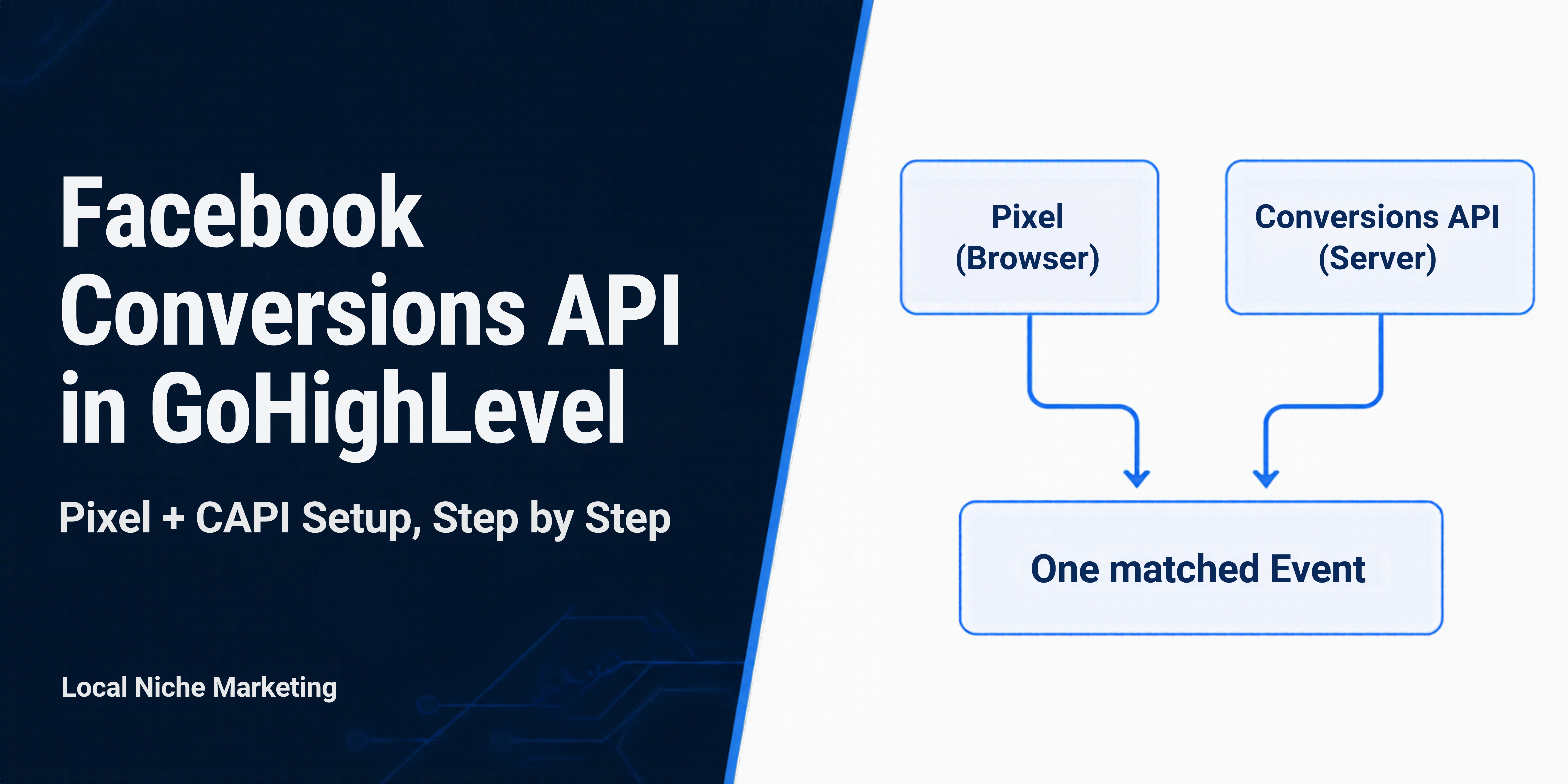
The Meta Pixel tracks what happens in the browser. The Conversions API sends the same events from GoHighLevel's server, so Meta still receives them when a browser blocks the pixel. Meta recommends running both together.
This guide walks through the full setup I use for client accounts, the event-name mistake I find in most audits, and how to send pipeline stages back to Meta so it can optimize for better leads.
What is the Facebook Conversions API, and why use it with GoHighLevel?
The Conversions API is Meta's way of receiving conversion events directly from a server instead of from the visitor's browser. In GoHighLevel, the server is GoHighLevel itself: a workflow sends the event to Meta when a form is submitted, an appointment is booked or a pipeline stage changes.
The pixel alone is no longer enough, for three reasons:
- Browsers block tracking. Third-party cookies, tracking scripts and iOS privacy settings all stop some pixel events from reaching Meta.
- Browser events are less reliable. Meta notes that the Conversions API can also catch events the pixel misses because of network issues or pages that fail to load.
- Meta optimizes on what it receives. The more of your real conversions reach Meta, the more it has to learn from when it looks for people likely to convert.
Pixel events and server events do the same job once Meta receives them. Meta's own guidance is to send events through both and let it remove the duplicates, which GoHighLevel handles for its supported funnel events (more on that below).
In the GoHighLevel accounts I set up through my GoHighLevel integration and automation work, CAPI is one of the first things I check, because a missing or broken setup quietly limits every campaign running on top of it.
If you run Google Ads as well, Google needs its own tracking. My guide to Google Ads conversion tracking in GoHighLevel covers that side, from Tag Manager to call tracking.
What you need before you start
| What | Where to find it |
|---|---|
| A Meta business account with access to your dataset (pixel) | business.facebook.com, then Events Manager |
| Your Pixel ID (also called the Dataset ID) | Events Manager, under your dataset's settings |
| A Conversions API access token | Generated in Events Manager during the manual setup (step 2 below) |
| Your form or calendar on a GoHighLevel funnel or website | Sites, then Funnels or Websites |
| Permission to edit workflows in the sub-account | Automation, then Workflows |
GoHighLevel also offers an Ad Manager connection that fills in your pixels without a manual access token. This guide uses the manual method because it works in every account and makes it clear which dataset each event goes to.
How to set up the Conversions API in GoHighLevel, step by step
Step 1: Create the pixel and install it in GoHighLevel
- Go to business.facebook.com, open Events Manager and create a new dataset under Datasets and pixels.
- Choose Install code manually and copy the pixel code.
- In GoHighLevel, open the settings of your funnel or website and paste the code into the head tracking code.
- Back in Meta, turn on Advanced Matching. It lets the pixel send hashed customer details with each event, which helps Meta match events to people.
Step 2: Start the Conversions API setup in Meta
- In your dataset, click Set up Conversions API.
- Choose Set up manually. Meta also offers a Conversions API Gateway, but the manual route is the one GoHighLevel's workflow action is built for.
- Select the events that matter to your business. For lead generation that is usually Lead, Schedule, SubmitApplication and CompleteRegistration. If you charge for a consultation in your funnel, add Purchase and AddPaymentInfo too.
Step 3: Choose the parameters for each event
For each event, Meta asks which customer details you will send. Event ID, email, phone number and IP address are the minimum in Meta's setup screen. Add first name, last name, external ID, browser ID, click ID and user agent as well, and keep adding until the event shows a green check.
Repeat this for every event you selected. The fewer details an event carries, the fewer events Meta can match to a real person.
Step 4: Generate the access token and copy the Pixel ID
- Open the implementation guide, click Get started, then Generate access token, and select your dataset.
- Copy the token and store it somewhere secure, such as a password manager. Anyone with it can send events to your dataset.
- Copy your Dataset ID from the dataset's settings. GoHighLevel calls this the Pixel ID.
Step 5: Send form submissions to Meta with a workflow
- In GoHighLevel, create a new workflow. I keep these in a separate folder named "CAPI" so they are easy to audit.
- Set the trigger to Form Submitted and filter it to the form you want to track.
- Add the Facebook Conversion API action and set the Event Type to Funnel Event, because the form sits on a funnel or website.
- Paste your Access Token and Pixel ID.
- Set the event name to Lead. Add a value if you assign one to each lead.
- Save and publish the workflow.
The details the form collects, such as name, email and phone, go to Meta with the event, which is what lifts your match quality.
Step 6: Send calendar bookings as a Schedule event
Duplicate the form workflow and change two things:
- Trigger: Customer Booked Appointment, filtered to your calendar. GoHighLevel's documentation says to use this trigger for calendar widget bookings, not the general appointment trigger.
- Event name: Schedule.
The event type stays Funnel Event, because the calendar is embedded on your funnel or website.
Which events to send from GoHighLevel
| What happens in GoHighLevel | Workflow trigger | Event type | Meta event |
|---|---|---|---|
| A form is submitted | Form Submitted | Funnel Event | Lead |
| An appointment is booked on a calendar widget | Customer Booked Appointment | Funnel Event | Schedule |
| A paid order form is completed | Order Form Submission | Funnel Event | Purchase |
| A lead from a Meta lead ad reaches a pipeline stage | Pipeline Stage Changed | Lead Event | Your stage name |
Fix the event name your forms send
This is the mistake I find most often when I audit ad accounts. The campaign is optimizing for Lead, but Events Manager shows no Lead events, only SubmitApplication.
The cause is the form itself. A GoHighLevel form has its own pixel setting, and it sends SubmitApplication on submit unless you change it. To fix it:
- Open the form in GoHighLevel and click Edit.
- Open Settings, then the pixel section, and confirm the Pixel ID.
- Change the event from SubmitApplication to Lead, and save.
This also matters for deduplication. Meta only treats a browser event and a server event as the same conversion when their event names match, so a form sending SubmitApplication alongside a workflow sending Lead gets counted as two different things.
If you're still building the form itself, my guide to GoHighLevel forms and surveys covers the fields and logic that make the data you send worth matching.
Send pipeline stages back to Meta
Not every lead is worth the same. Sending a later pipeline stage, such as a booked consult or a closed deal, tells Meta which leads actually turned into business.
- Create a workflow with the trigger Pipeline Stage Changed, filtered to your pipeline and the stage that matters most, such as Closed.
- Add the Facebook Conversion API action and set the Event Type to Lead Event.
- Paste your access token and Pixel ID.
- In Stage Name, use the tag icon to insert the opportunity's pipeline and stage values, so Meta receives the real stage name.
- Add a value if your closed deals have a typical value.
Two conditions decide whether this is worth doing:
- The lead needs a Meta link. GoHighLevel built the Lead Event for leads from Facebook and Instagram lead ads, where the Meta Lead ID is stored on the contact. For other contacts, it only works if they already carry Facebook attribution.
- Your pipeline has to be up to date. If stages are moved once a month, Meta learns from stale data and this event does nothing. I only recommend it to clients who update the CRM daily or weekly. A pipeline that moves on its own when staff change a status, like the one in this GoHighLevel CRM setup for a tax firm, solves that.
For Meta to optimize lead ad campaigns on these stages, GoHighLevel's documentation lists further requirements: at least 250 leads a month, data sent at least daily, the target stage reached within 28 days of the lead, and a stage conversion rate between 1% and 40%.
How to test that the Conversions API is working
- Publish the workflow and do a real submission. GoHighLevel recommends testing with an actual form fill or booking rather than relying on the workflow's test button.
- Check the workflow's execution log in GoHighLevel to confirm the Facebook Conversion API action ran.
- Open Events Manager and look at the event. It should show both Browser and Server as connection methods.
- Check Diagnostics in Events Manager for warnings about deduplication or missing parameters.
Lead Events from pipeline stages can take longer to show. GoHighLevel's documentation says they can take up to a day to appear.
Deduplication: will Meta count the same lead twice?
Not if the setup is right. Meta matches a browser event and a server event as one conversion when both carry the same event name and the same event ID. GoHighLevel's documentation says it sends an event ID automatically for its supported funnel events, so you don't set this up yourself. Your part is keeping the event names identical, which is why the form fix above matters.
Event Match Quality: the number to watch
Event Match Quality (EMQ) is a score out of 10 that Meta shows for each server event in Events Manager. It reflects how well the customer details you send can be matched to a Meta account. Meta's documentation says only matched events can be used for ad attribution and delivery optimization.
To raise it, send more of the details Meta lists as high quality: email, phone number, first and last name, IP address and external ID. In GoHighLevel, the simplest way is to make sure your forms collect name, email and phone, and that Advanced Matching is on for the pixel.
Common Conversions API mistakes in GoHighLevel
- The form and the workflow send different event names. The form sends SubmitApplication, the workflow sends Lead, and the campaign optimizes for an event that only half arrives.
- Advanced Matching is off. The pixel sends fewer customer details, and match quality drops.
- Too few parameters per event. Setting up one event fully and leaving the rest at the minimum is common.
- Bookings aren't tracked. Only the form is connected, so Meta never learns which leads booked.
- The wrong calendar trigger. The general appointment trigger is used instead of Customer Booked Appointment.
- A pipeline event on a pipeline nobody updates. Meta learns from stages that don't reflect what happened.
- Expecting CAPI to fix a restricted dataset. If Meta has classified your site as health and wellness, the same restrictions apply to server events as to the pixel. My post on Meta health and wellness restrictions for chiropractors covers what does and doesn't help in that case.
Frequently asked questions
Does GoHighLevel support the Facebook Conversions API?
Yes. GoHighLevel has a built-in Facebook Conversion API workflow action. It sends events such as form submissions, calendar bookings, order form purchases and pipeline stage changes to Meta, using either your access token and Pixel ID or a connected Ad Manager account.
Do I still need the Meta Pixel if I use the Conversions API?
Yes. Meta recommends sending the same events through both the pixel and the Conversions API. The pixel captures browser activity, the Conversions API fills the gaps when the browser blocks it, and Meta removes the duplicates when the event names and event IDs match.
Where do I find the access token and Pixel ID?
Both are in Meta Events Manager. Open your dataset's settings to copy the Dataset ID, which GoHighLevel calls the Pixel ID. Generate the access token from the Conversions API section of the same settings, using the manual setup option.
What is the difference between a Funnel Event and a Lead Event in GoHighLevel?
A Funnel Event sends website conversions, such as form submissions, survey submissions, calendar widget bookings and order forms. A Lead Event sends CRM progress, such as a pipeline stage change, and is built for leads from Facebook and Instagram lead ads.
Why does Events Manager show SubmitApplication instead of Lead?
The GoHighLevel form's own pixel setting sends SubmitApplication by default. Open the form, go to its settings, change the pixel event to Lead and save. Then the browser event matches the Lead event your workflow sends, and the campaign optimizes on the right event.
Does GoHighLevel deduplicate pixel and Conversions API events?
For its supported funnel events, yes. GoHighLevel's documentation says it sends an event ID automatically, which Meta uses to match the browser and server versions of the same conversion. You still need to keep the event names identical on both sides.
How do I know the Conversions API is working?
Publish the workflow, submit the form or book an appointment yourself, and check the workflow's execution log. In Meta Events Manager, the event should list both Browser and Server, and Diagnostics should show no deduplication or parameter warnings.
Will the Conversions API get around Meta's health and wellness restrictions?
No. When Meta restricts a dataset, the same rules apply to server events as to pixel events. CAPI improves how many of your allowed events reach Meta, but it doesn't unblock restricted ones.
Can I optimize Meta ads for closed deals instead of form fills?
Yes, for leads from Meta lead ads. Send the closed stage as a Lead Event from a Pipeline Stage Changed workflow. Meta needs steady volume to use it: GoHighLevel lists at least 250 leads a month and daily data, among other requirements.
Not sure your tracking is set up right?
I can review your GoHighLevel and Meta tracking. I check whether your pixel and Conversions API events are both reaching Meta, whether the event names match your campaigns, and where your match quality is losing data. You get a short list of what to fix, whether or not you have me fix it.


